OptiPowerTools.ScheduledJobsInsights: Execution History for Optimizely's Native Scheduled Jobs
Most of what I’ve written on this blog over the last couple of years keeps circling back to the same place: scheduled jobs. A job that removes orphaned job records from the database. A job that rebuilds SQL indexes and statistics. A whole series on walking a Commerce catalog without blowing up the heap.
On a real Optimizely project, the scheduled job system is where a surprising amount of the actual business lives — nightly imports, exports to an ERP, index maintenance, catalog reconciliation, cleanup passes nobody has thought about since 2019.
And every one of those posts had the same blind spot, which I glossed over each time because there was nothing to do about it: once the job finishes, you have almost nothing.
What the native job system actually tells you
Optimizely’s built-in Scheduled Jobs screen gives you three things per job: whether the last run succeeded, when it ran, and a single string — whatever Execute() returned, dropped into one cell of a grid. That’s it. OnStatusChanged messages are live-only; they update the status column while the job runs and are gone the moment it ends.
So the conversation on a Monday morning goes like this. Someone asks why Saturday’s product import was slow. You open the Scheduled Jobs screen and find Imported 12,483 products. — the same message it always shows.
Not which products. Not how long it took, beyond a start and end time. Not whether it churned through 8 GB of allocations getting there.
If the run threw, you get a failure flag and a message, and then you go digging in Application Insights hoping the correlation window is wide enough and log retention hasn’t already aged it out.
The information existed. The job knew everything — it just had nowhere to put it, so it threw it away and returned one sentence.
That’s the gap I finally got tired of, and OptiPowerTools.ScheduledJobsInsights is what came out of it. Version 1.0.0 landed on NuGet last week. It joins OptiPowerTools.Hangfire in the OptiPowerTools family — where that package moves your background work off the native scheduler, this one is aimed squarely at the jobs that stay on it.

Writing a logged job
The whole design goal was that adopting it should be a one-line change per job. Swap ScheduledJobBase for LoggedScheduledJobBase, implement ExecuteJob() instead of Execute(), and every run is recorded from then on:
using EPiServer.Scheduler;
using OptiPowerTools.ScheduledJobsInsights.Configuration;
using OptiPowerTools.ScheduledJobsInsights.Logging;

[ScheduledJob(DisplayName = "Nightly Catalog Sync", IntervalType = ScheduledIntervalType.Days)]
public class CatalogSyncJob : LoggedScheduledJobBase
{
    public CatalogSyncJob(JobLoggingContext context)
        : base(context)
    {
    }

    protected override string ExecuteJob()
    {
        LogInputData(new { Source = "ERP", Mode = "Incremental" });

        Log("Starting catalog sync.");
        // ... do the work, calling OnStatusChanged(...) as usual if you like ...
        Log("42 products updated, 1 skipped.", LogSeverity.Warning);

        RecordMetric("ProductsUpdated", 42);

        Summary.AppendSection("Totals");
        Summary.AppendLine("  Updated : 42");
        Summary.AppendLine("  Skipped : 1");

        return "Synced 42 products.";
    }
}
Note what didn’t change:
OnStatusChangedstill works exactly as before. You keep calling it, the CMS status column keeps updating, and the message is also captured into the history.- The string you return still lands in Optimizely’s Last execution message cell.
- If
ExecuteJob()throws, the exception is recorded and then rethrown unchanged, so the CMS’s ownHasLastExecutionFailedtracking behaves exactly as it would without the package. - Constructor injection works the way Optimizely already constructs jobs — add your own dependencies alongside
JobLoggingContextand forward only the context tobase.
The point is that this is additive. Nothing you already rely on moves.
Setup
Install from NuGet:
dotnet add package OptiPowerTools.ScheduledJobsInsights
One project setting is required, and it’s the single most likely thing to trip you up, so it’s worth stating up front. In the application’s .csproj:
<PropertyGroup>
  <RequiresAspNetWebAssets>true</RequiresAspNetWebAssets>
</PropertyGroup>
The UI is a Blazor Server component, and without this the page renders but never becomes interactive. Applications that already contain their own .razor files get it for free; the package logs a named warning at startup if it spots the setting missing.
Why the SDK misses components that live inside a package — and why the failure is silent — is a story of its own, and it gets one in the follow-up post on building this UI.
Then the wiring:
// Program.cs or Startup.cs
services.AddOptiPowerToolsScheduledJobsInsights(options =>
{
    options.ConnectionString = Configuration.GetConnectionString("EPiServerDB");
});

// ... then in the middleware pipeline, after UseAuthorization()
app.UseEndpoints(endpoints =>
{
    // Map the hub on your own route builder, ahead of MapContent().
    endpoints.MapOptiPowerToolsScheduledJobsInsights();

    endpoints.MapContent();
    endpoints.MapControllers();
});

// Migrations and startup diagnostics. The hub is already mapped, so this does not map it again
app.UseOptiPowerToolsScheduledJobsInsights();
That ordering is not cosmetic. Mapping the hub in the wrong place breaks every Blazor request in the application — the host’s own pages included — with an exception that names nothing useful. The follow-up post explains why.
The connection string can point at the same database as Optimizely or at a separate one — there’s no fallback, it must be set explicitly. Tables live in their own scheduled_jobs_insights schema via standard EF Core migrations, applied at startup by default. If your application identity has no DDL rights, set AutoMigrateDatabase = false and run the idempotent SQL script shipped with each GitHub release.
Everything else is optional and has defaults: retention period, page size, authorized roles, menu placement, poll intervals. Configure via IOptions<T> or an OptiPowerTools:ScheduledJobsInsights section in appsettings.json, validated at startup so a typo fails there rather than silently at 3am.
What you get back
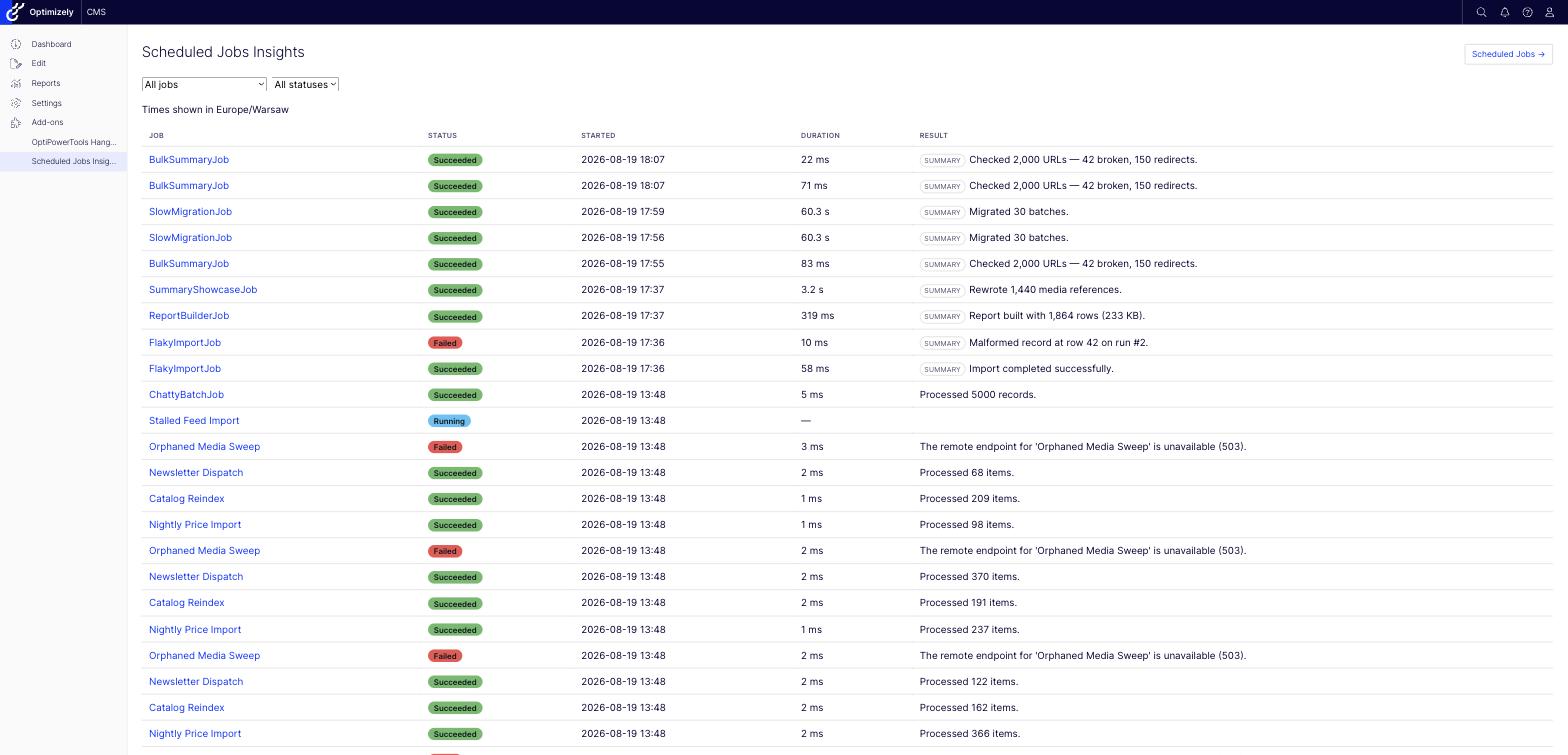
The execution list is filterable and keyset-paginated, with status badges and a marker on runs that recorded a summary:
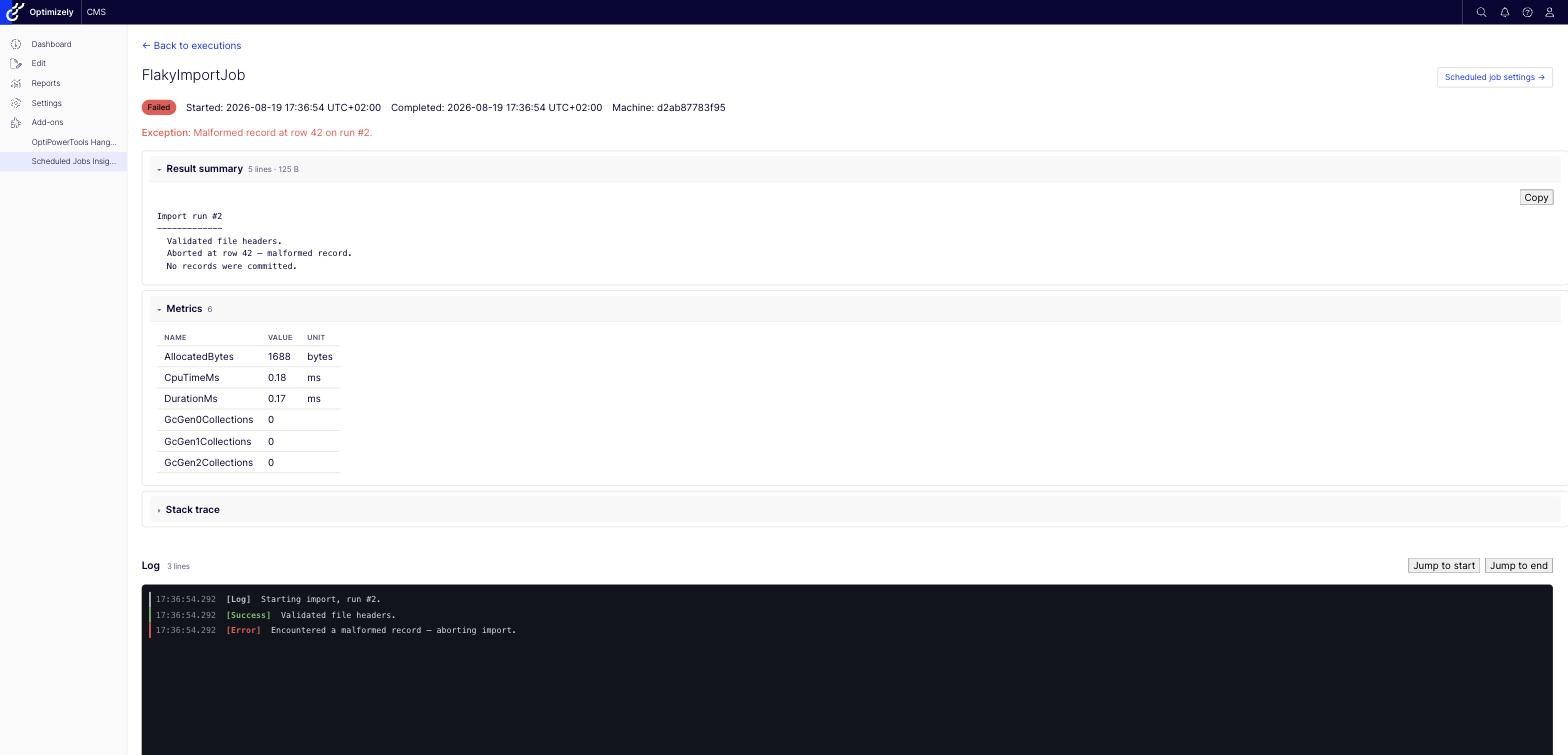
Open a run and you get a console-style log viewer with severity colouring, the input data the run started with, metrics, stack trace if it failed, and the result summary — each in its own collapsible section:
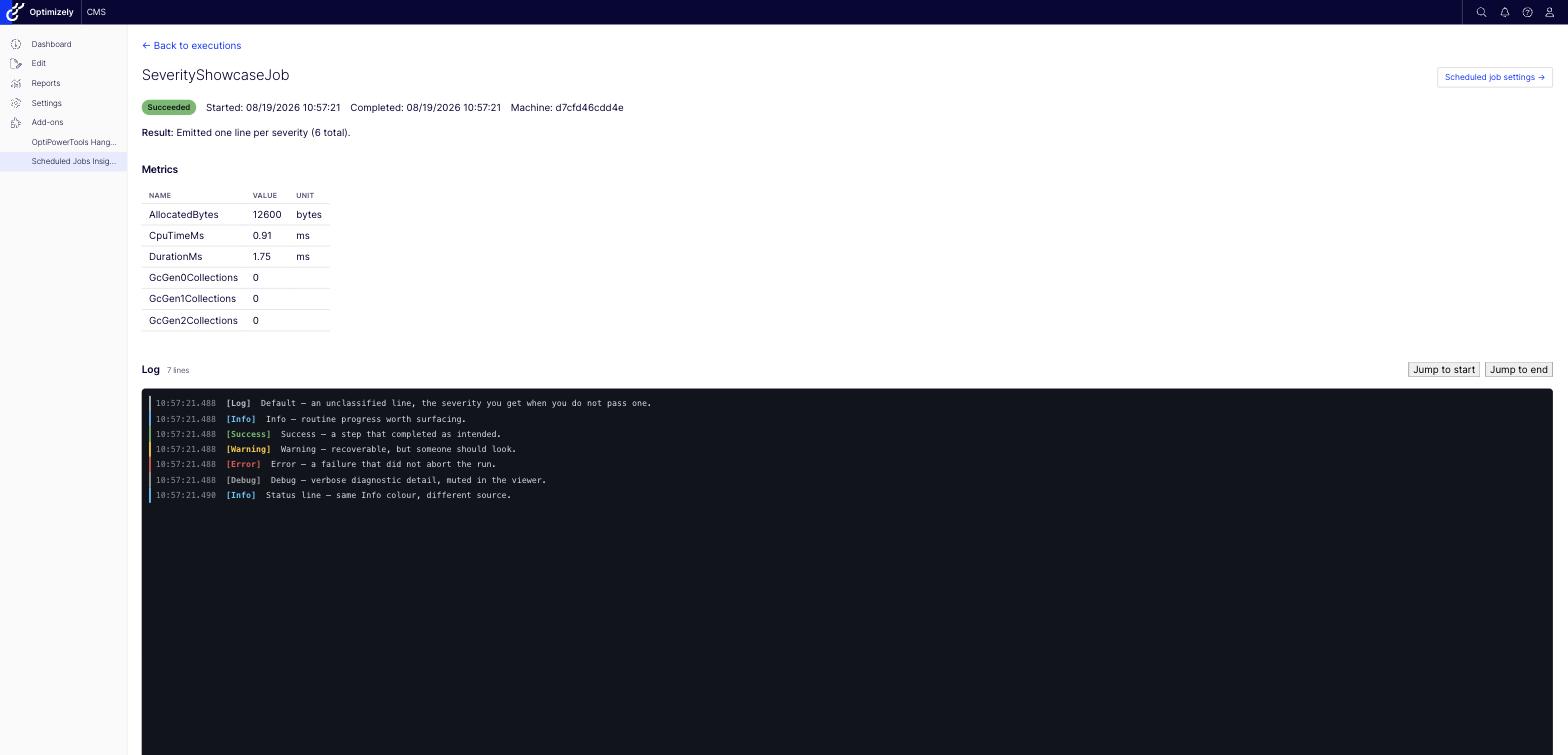
Severities are Info, Success, Warning, Error, Debug and Default, colored in the viewer so a bad run is visible by scrolling rather than by reading:
The menu entries go where an administrator would actually look for them — including one under Settings › Data & Sync Management, immediately below Optimizely’s own Scheduled Jobs page, with links from the UI back across to a job’s CMS settings.
The result summary
This is the feature I use most, and it’s the one the native system has nowhere to put.
Summary is a multi-line report the job builds as it works. It’s not the same thing as the string ExecuteJob() returns — that one goes into Optimizely’s grid cell and should stay a single sentence. The summary is as long as it needs to be, and lands in its own section of the detail view:
Summary.AppendLine($"Export for {from:yyyy-MM-dd} … {to:yyyy-MM-dd}");

Summary.AppendSection("Rows by region");        // underlined heading, blank line before it
foreach (var region in regions)
    Summary.AppendLine($"  {region.Name,-6} {region.Rows,6:N0}");

Summary.AppendSection("Totals");
Summary.AppendLine($"  Rows exported : {total:N0}");
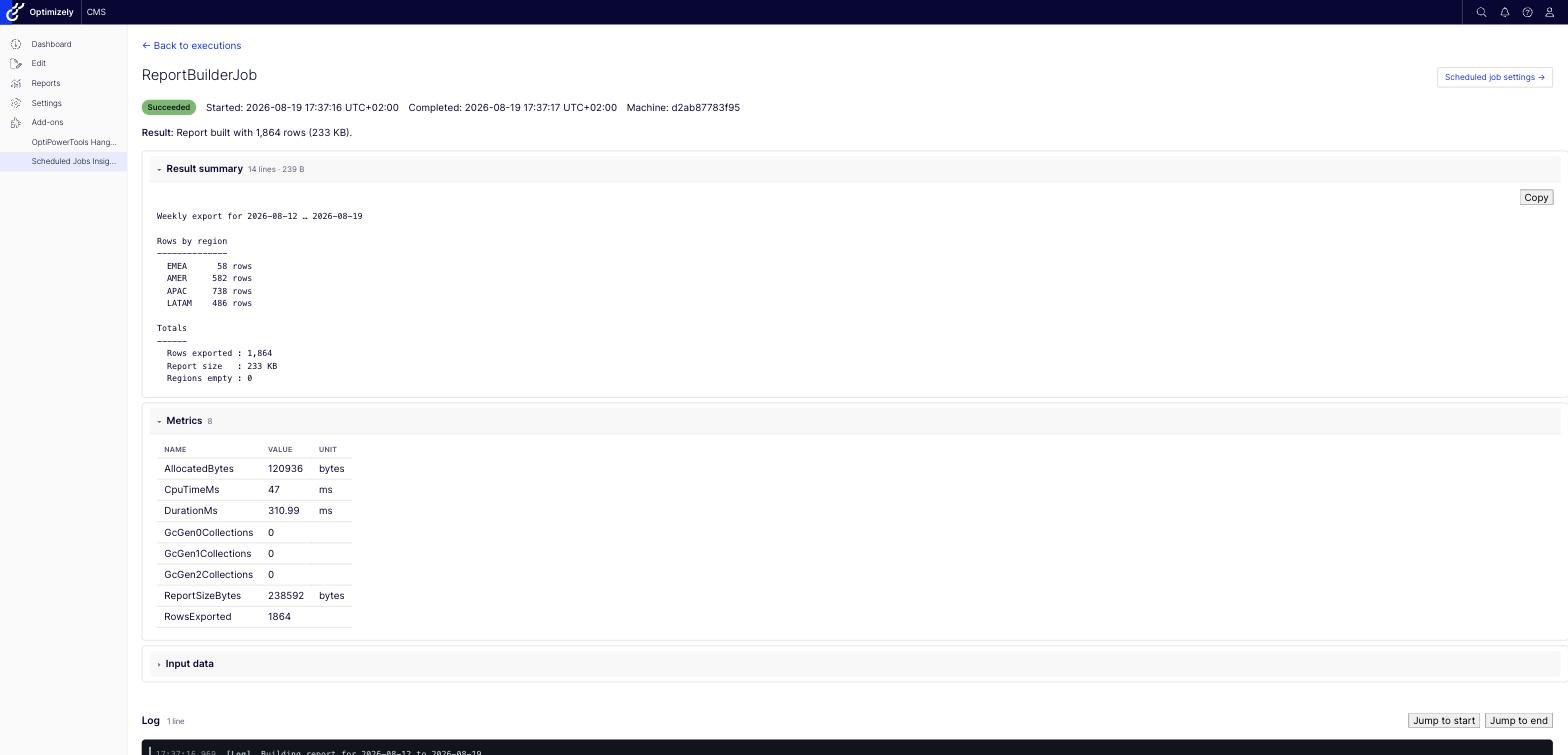
Three details matter more than the API does:
- Newlines survive end to end, stored as written and rendered as written, so a column-aligned report still lines up on the page.
- It survives failure. The summary is persisted on the way out of
ExecuteJob()whether it returned or threw, so whatever a job managed to record before dying is still there when you go looking. - It’s bounded. Appends past
MaxResultSummaryLength(100,000 characters) are discarded with a truncation notice, so a job that logs one line per SKU can’t quietly write megabytes into every history row.
Nothing is stored unless you append something, so jobs that don’t use it pay nothing.
Automatic metrics
Every execution records duration, bytes allocated, process CPU time and GC collection counts automatically, plus anything you add via RecordMetric. The names are deliberately awkward, and I want to explain why, because the honest version is more useful than the tidy one:
| Metric | What it really is |
|---|---|
DurationMs |
Wall-clock time around ExecuteJob(). Always reliable — one dedicated thread per execution. |
ThreadAllocatedBytes |
Bytes allocated on the job’s own thread. A job that fans work out to the thread pool under-reports. |
ProcessCpuTimeMs |
CPU time for the whole process during the job’s window — on a CMS serving requests, that includes everything else the application was doing. |
GcGen0/1/2Collections |
Process-wide GC deltas. Same caveat, but a useful trend signal across repeated runs of the same job. |
Per-job CPU isn’t something this package can measure. Rather than call it CpuTimeMs and let you draw a wrong conclusion, the name says whose CPU it is. The same applies to allocations.
As a trend across repeated runs of the same job, both are genuinely useful — the run where allocations tripled is exactly the run you want to look at. As an absolute number attributed to one job, they’d be a lie.
Execution statuses
Native tracking has two outcomes: it succeeded or it failed. This package records five, and the extra three exist because the first two quietly distort history.
Stopped means an administrator pressed Stop and the job noticed — set IsStoppable = true and check IsStopRequested between units of work. Without a distinct status, a stopped job reads as a success, and “the import ran fine on Tuesday” becomes something nobody can disprove.
Interrupted means no outcome was ever reported: the process was recycled, the container replaced, the host crashed mid-run. A process that dies mid-job can’t record anything itself, so this is applied retrospectively by the cleanup job after a threshold. Completion time stays empty, because it’s genuinely unknown. Without it, abandoned runs sit at Running for ever and every count and filter on the page is wrong.
Running is the third, and it’s live: a running execution re-polls every two seconds and appends new lines as they arrive, marked with a live indicator, fetching only lines newer than those already shown. Leave the page open while a job finishes and it catches up on its own — the badge flips, duration fills in, metrics and summary appear. No reload.
Retention
A job logging one line per processed row will produce a lot of rows. Retention resolves in three tiers: an administrator’s override wins over a [JobRetention] attribute on the job, which wins over the configured default of 30 days. Any of the three can be indefinite.
[ScheduledJob(DisplayName = "Nightly Catalog Sync", IntervalType = ScheduledIntervalType.Days)]
[JobRetention(7, Description = "Logs one line per SKU; a week is enough to diagnose a bad run.")]
public class CatalogSyncJob : LoggedScheduledJobBase { }
The attribute travels with the code, so a fresh deployment gets it right without anyone remembering to configure anything — but it’s a default, not a mandate. The Description shows up beside the value in the retention screen, so whoever is deciding whether to override it can see what the job’s author intended and why:
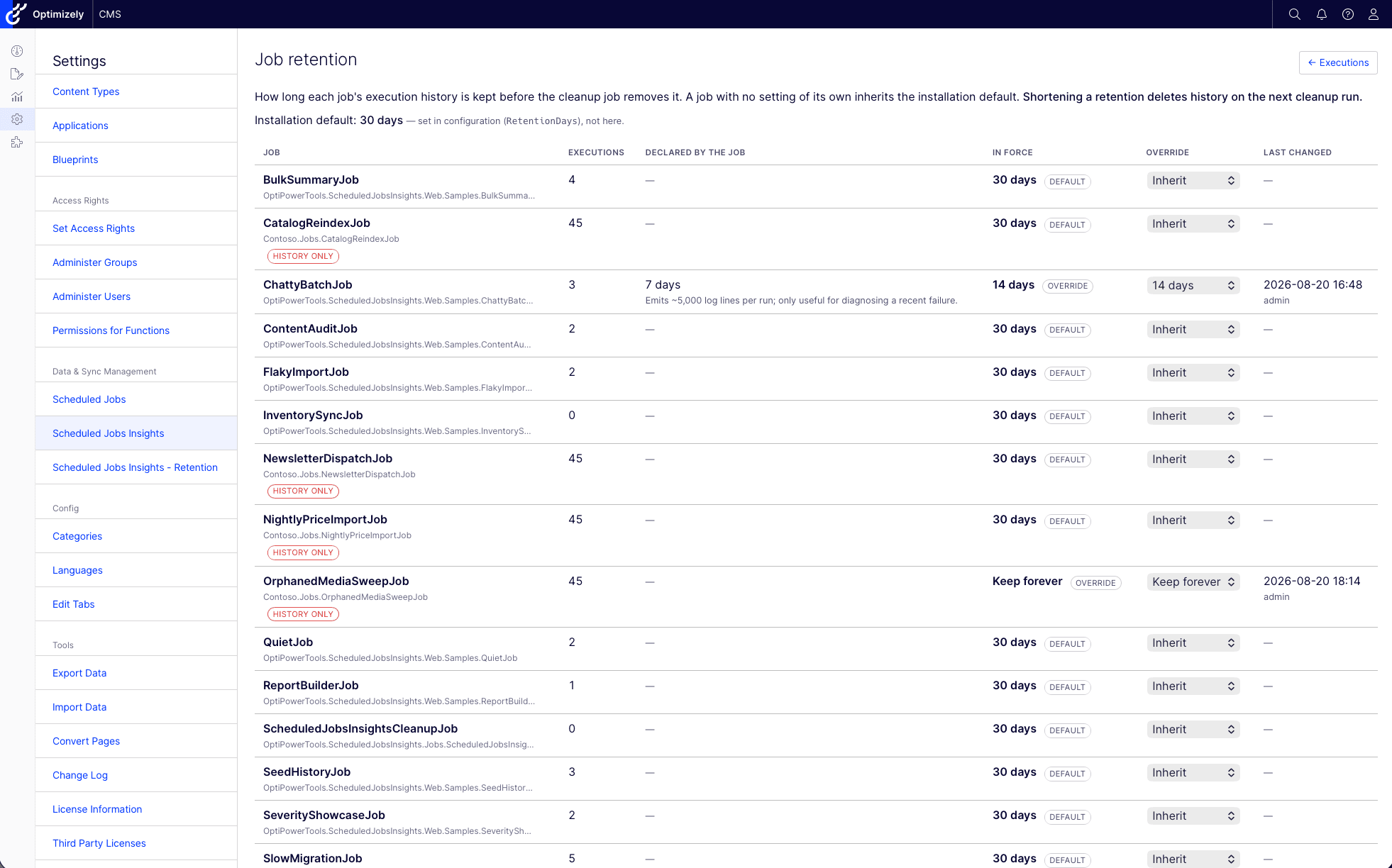
The screen lists every job deriving from LoggedScheduledJobBase — so a job can be configured before its first run — plus job types that exist only in history, marked history only, so records left behind by deleted code can still be trimmed. Optimizely’s own ScheduledJobBase jobs are deliberately absent: they never write history, and listing the CMS’s two dozen built-ins would bury the handful that matter.
Cleanup itself is a native [ScheduledJob], auto-discovered into the CMS’s own Scheduled Jobs list, so its interval and enabled state are managed where you’d expect. It’s also a LoggedScheduledJobBase, so its own runs show up in the execution list like everything else.
It cannot take your site down
This is the constraint I held everything else to. The package observes scheduled jobs; it is never allowed to prevent them. If its database is unreachable:
- The application still starts. Startup migrations log a critical error and continue rather than aborting
Configureand taking the whole CMS down with them. - Jobs still run and still report correctly. Recording is skipped for that run; the job’s own exception is still rethrown, so Optimizely’s success/failure tracking is unchanged.
- The CMS status column still updates, because
OnStatusChangedraises the native event before any recording is attempted. - Nothing throws into job code. No member of
IJobExecutionWriterthrows, andLogInputDatasurvives both an object graph JSON can’t serialize and a property getter that throws on access — it records why the input couldn’t be captured and carries on.
What you lose is history for the affected period, and the UI says it couldn’t read the history rather than rendering a convincingly empty list.
A note on the UI
The whole interface is Blazor Server, rendered inside the CMS shell like any native admin page. That was a deliberate choice — a live console that appends log lines while a job runs is exactly the shape Blazor is good at, and CMS 13 on .NET 10 means Blazor is already part of the platform the CMS runs on.
It also turned out to be the most interesting part of the build, and the part with the sharpest edges: shipping Razor components inside a NuGet package, mapping the Blazor hub next to MapContent(), and what prerendering does to time zones.
That is too much for this post, so it gets its own, and it’s the next one.
Insights or Hangfire?
Both packages are about background work, and they are not alternatives to each other. The question isn’t which package, it’s which scheduler.
Reach for OptiPowerTools.Hangfire when the native scheduler is the wrong tool: you need fire-and-forget or queued jobs rather than a fixed interval, jobs triggered by application events, automatic retries, concurrency control between job types, or several workers processing a queue. That’s a change of infrastructure, and Hangfire’s dashboard comes with it.
Reach for OptiPowerTools.ScheduledJobsInsights when the native scheduler is right — an interval job, editors starting it by hand from the CMS, operations expecting to find it on the Scheduled Jobs screen — and what’s missing is only the record of what it did. Nothing moves. You change a base class.
Plenty of projects will want both, and they coexist happily: Hangfire for the event-driven work, native jobs with history for the nightly maintenance an administrator needs to see in the CMS.
Where to get it
1.0.0 is out. The source is on GitHub: szolkowski/OptiPowerTools.ScheduledJobsInsights
Install from the Optimizely feed or nuget.org:
dotnet add package OptiPowerTools.ScheduledJobsInsights
It requires .NET 10 and Optimizely CMS 13.x. The Blazor hosting model and the CMS 13 shell integration are what the package is built around, and there is no CMS 12 line.
MIT licensed and SemVer’d. The public surface is deliberately narrow and spelled out in the README, so you know exactly what 1.x promises to keep compiling: the base class and its seams, JobLoggingContext, IJobExecutionWriter, the options and configuration section, and the persisted enums and schema.
Each GitHub release also carries the idempotent SQL script for that version, for deployments that apply the schema themselves rather than letting the package migrate at startup.
Wrapping up
Every project I’ve worked on that leans on scheduled jobs has, at some point, had the same conversation: something ran overnight, somebody asks what it did, and the answer is a shrug and a trawl through logs.
On a small site you live with it. On a large one — dozens of jobs, several environments, a DXP instance that recycles when it feels like it, an integration whose owner asks pointed questions on Monday — you shouldn’t have to.
If you’re running native Optimizely scheduled jobs at that scale, I think execution history stops being a nice-to-have and becomes something the project should just have from day one.
Four release candidates went out over the last few weeks, and the API surface settled well before the last of them. What 1.0.0 hasn’t had yet is your jobs.
If something doesn’t fit — a job shape I didn’t anticipate, a host configuration that fights the Blazor hub, a metric that would have told you something — open an issue. Feedback from a real project is worth more than another week of my own testing.
Is there anything else you’d want recorded about a job run that isn’t here? Let me know in the comments. Thank you for reading!